
SquadFusion creates a set of pages for each of your squads. The set contains:
- An overview
- The roster
- Chat/discussion page
- A calendar for the squad
- Standings, if you use them
Normally, for any of these pages to be visible, you must publish the squad and the squad must belong to a program with a current season.
Publishing Squads
You manage squads as part of their program, in the Programs menu. New squads start in Draft status.
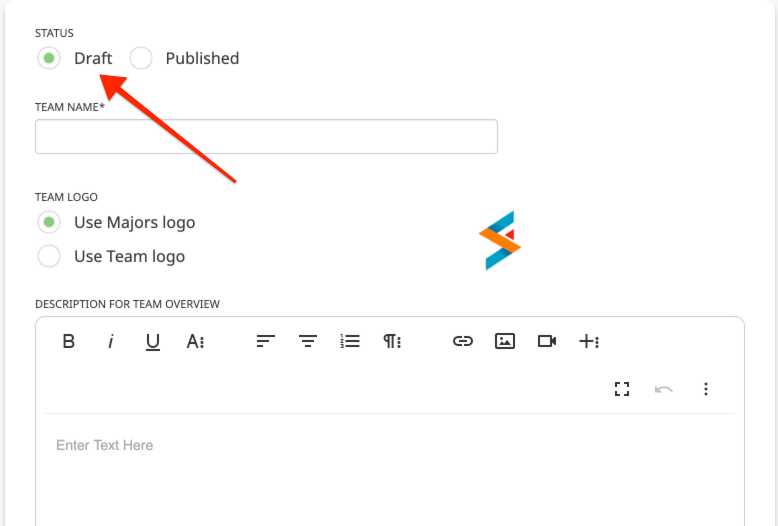
You can make it Published right away or do it later. And if you do publish it immediately, you can toggle it back to Draft later. Use the Available Actions at the bottom of the squad's details.
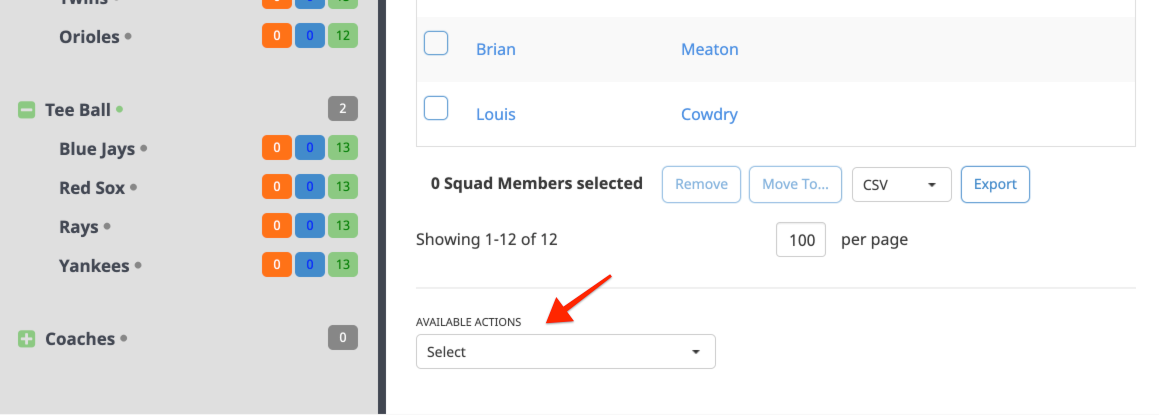
You can only set a squad (or division, for that matter) to Published if the level above it is also Published.
By default, only administrators and squad leaders (coaches, managers, etc.) can view Draft squads. This allows you to finalize rosters before making them generally available for viewing. If you would like to set different rules for your organization, contact your SquadFusion account rep or Support.
Seasons
Manage seasons in the Programs menu. You can mark them as Past, Current, or Future.
By default, only administrators can access most items linked to past and future seasons. If you wish other roles to have access to past and/or future season information, contact your SquadFusion account rep or Support.
Individual pages within each squad
Assuming users can access a particular squad (e.g., it's published and in a current season), by default they can access most pages within a squad. However, certain information may not be available to everyone on all pages.
Like the items above, access to pages overall and to different content or actions can be tailored to fit your organization's needs. Some of it can be done by administrators, some of it must be done by SquadFusion Support.
Everyone can access Standings by default.
Only squad members and users granted an elevated role (coach, manager, etc.) on the squad can access that squad's Squad Chat by default.
Everyone can access the squad's schedule by default. However, the ability to view events is determined by the type of event in combination with the user's role. For instance, everyone might be able to view tournaments, while only squad members might be able to view practices.
Event type access is defined in Scheduling > Event Types.
The squad roster works in a similar way to the squad schedule. Everyone can access it by default, but not the participant information shown on the roster. Each field has its own settings for which roles can view it. For instance, you could have the participant name visible to everyone, but their contact information available only to other people on the roster.
Field access is defined in Personalization > Custom Fields, and Personalization > Standard Fields.
Navigating to Squads
Users linked to squads which meet their access rights to Draft/Published status and Past/Current/Future seasons can see those squads from the left-hand navigation menu and on their home page.
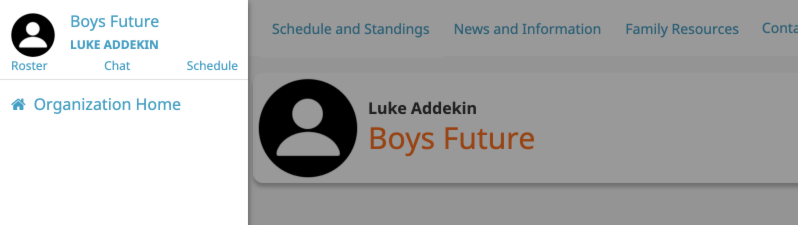
From the left-hand navigation, you can go directly to the roster, chat, or schedule if you'd like.
For anyone not an administrator and not linked to a squad, you can easily create a page in your Organization Home menu. This is set up in Organization Content > Menu Tabs.
Add a Program content type to do this.
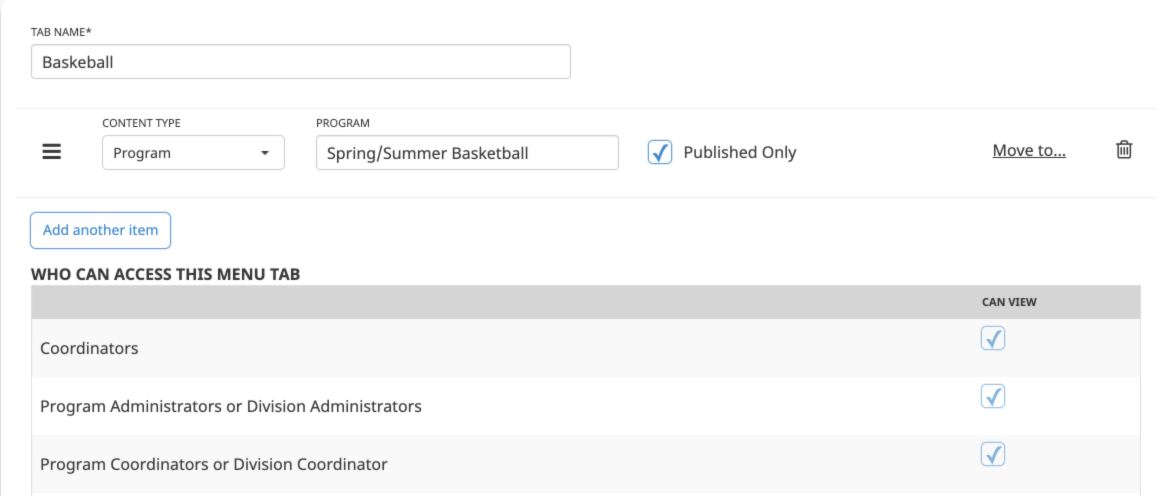
SquadFusion will show all the published elements inside the program, along with links for people to navigate to the squads. If there are standings associated with the program, those will be shown as well.
The menu tabs themselves contain a list of all the roles available. You can prevent users in certain roles from accessing the tab.
Administrators can access squads in additional ways:
- From the Search menu, you can search for a specific squad and go to either its roster or it's entry in the Programs menu.
- From the program details in the Programs menu, you can select a squad. Each squad has a link as part of its details to go to its set of pages.