
When it's time to set up a new season, you will typically do the following 3 things:
- Set up the season itself. There are only a couple fields to fill out.
- Set up at least one new program for the season.
- Set up at least one registration form for people to sign up for the new season.
Let's look at each of these steps in a little more detail.
Setting up the season
This is done in the Programs menu.
A season usually represents some range of time, but it can represent whatever you want. A season is mainly a way to group programs.
While simple to set up, a couple attributes have significant impacts throughout the app.
Past, current, future
Whether you mark a season as past, current, or future controls who sees the programs, divisions, squads, registrations, and events within that season. Typically, only administrators can see those things for past seasons. By default, even the administrators don't see them. But they are easy for an administrator to access if needed.
(We do this to keep the list of things administrators of large organizations access to a manageable size, but without actually forcing you to archive them off the system altogether.)
You can have as many past, current, and future seasons as you need. So don't feel compelled to set the old seasons to past or even to set the new seasons to future if you want them to be visible. When you are "done" with a season, you can mark it as past. When you mark it as past, it removes it from non-administrators.
Default for searches
The other attribute with broad effect is the season you designate as the default season for searching. The default season must be a current season. But if you have multiple seasons you wish to be current, you should still designate your most frequently accessed one as the default for searches.
Many places in the system prompt you for a season as part of searching for something else. This helps keep the search results manageable. Also, some objects, such as squad names, can repeat from season to season. The season actually differentiates them in the searches. While you can always change the season as part of each search, you will save some time by setting the most frequently accessed season as the default.
Creating programs for the new season
We strongly advise you to create new programs each season, instead of re-using the existing programs and simply changing their seasons.
You can either create your new programs from scratch or you can clone an existing program to create the new one. It's easy to create new programs, especially when they have no or few divisions and squads.
It's actually easy to create divisions and squads as well. But it can be tedious if you have a lot of them to create. The larger and more complex your existing programs are, the more likely you will want to clone them when the next season comes around. Of course, this assumes your new season's program will be similar to the old one.
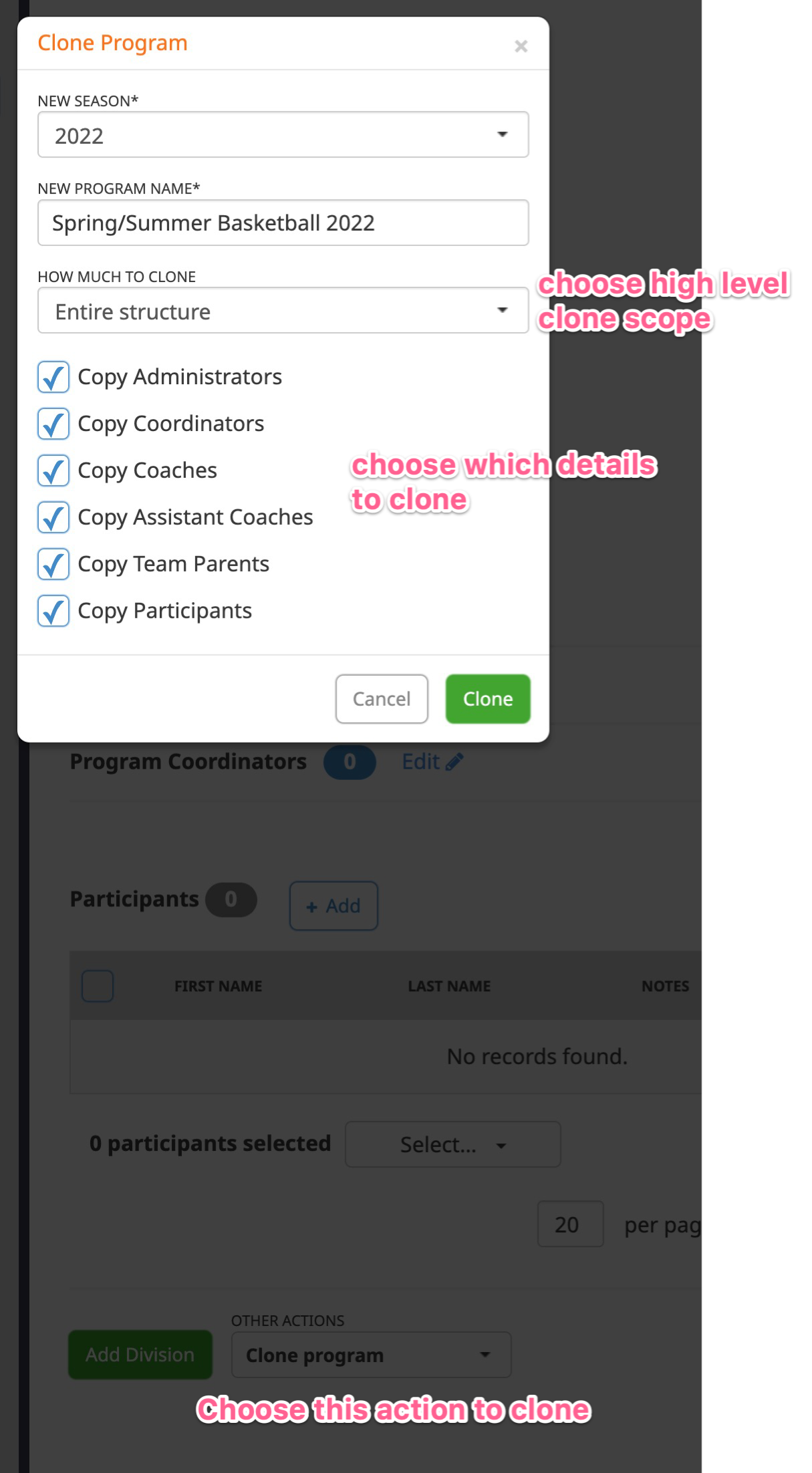
Start the clone process from the Other Actions dropdown on an existing program.
There are 3 choices for the scope of the clone:
- Entire structure. This is the program, divisions, and squads.
- Everything except squads. In other words, the program and divisions, but no squads.
- Program details only.
Depending on which option you select, you'll have the chance to bring over various people associated with the program as well. Administrators and coordinators are for the programs and divisions.
If you choose Entire Structure, you can also choose whether to bring over coaches, captains, etc. And you can even choose to bring over the participants assigned to the program, if you want.
Creating registrations for the new programs
Similar to our recommendation for creating new programs, we strongly suggest you create new registrations instead of simply updating the old registrations with new dates and setting the new program. This is especially true if you normally have your registrations set to prevent re-registering (which is common).
Also like programs, you can clone an existing registration or create a new registration from scratch. It's more common to clone registrations than programs. Many of your registration attributes are likely to be the same from registration to registration: which fields you collect, which are required, agreements, confirmation messages, etc.
Footnote:
We refer to seasons and programs in this document. But SquadFusion allows you to easily substitute your own terminology for ours. You or an administrator might have different terms for seasons and programs. Keep that in mind. If needed, navigate to Personalization > Terminology to get, or change, your terms for seasons and programs.