
Many organizers like to export division and team breakdowns so they can use Excel to summarize and aggregate data.
At a high level, you need to do two things to enable this: filter by the program, division, or team you would like to export; and ensure that program and squad assignments are included on your export definition.
(See Change what gets exported from reports if you need to know how to navigate to Export Definition setup.)
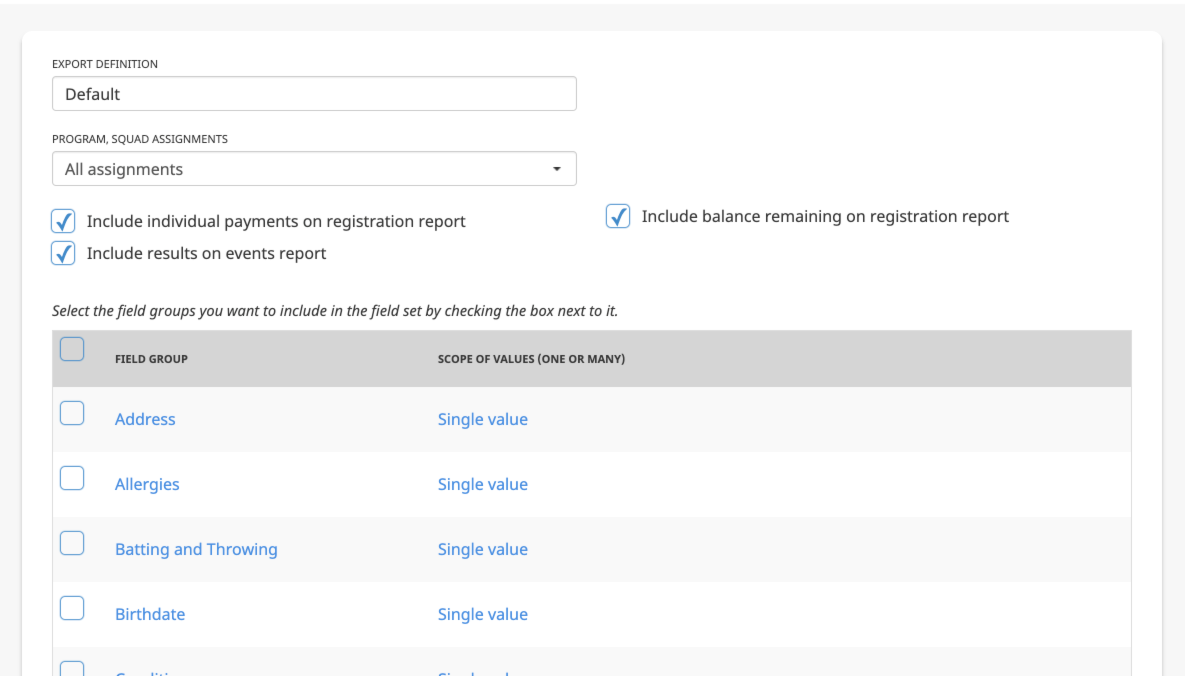
The export definition you use should have one of the following set in the Programs, Squad Assignments dropdown:
- All assignments
- Only when Program or Squad is published
If you have already published the programs, divisions, and squads you are interested in (for instance, you are in the midst of the season), we recommend you choose the only when published option. This helps ensure you have only the data you want in the export.
But if you have not published the programs, divisions, and squads yet (for instance, it's still pre-season and you do not want people to access their rosters yet), then you should choose All assignments. In this case, it will be more important to set your filters narrowly in order to avoid getting too many programs and teams listed for everyone.
If you want mainly to get a consolidated set of rosters, you will probably want to export from the participant report.
If you are exporting so you can feed financial information into a spreadsheet for financial analysis by squad or division, you will probably want to export from the registration report. In that case, you will probably also want to set the Export Option to one row per participant.
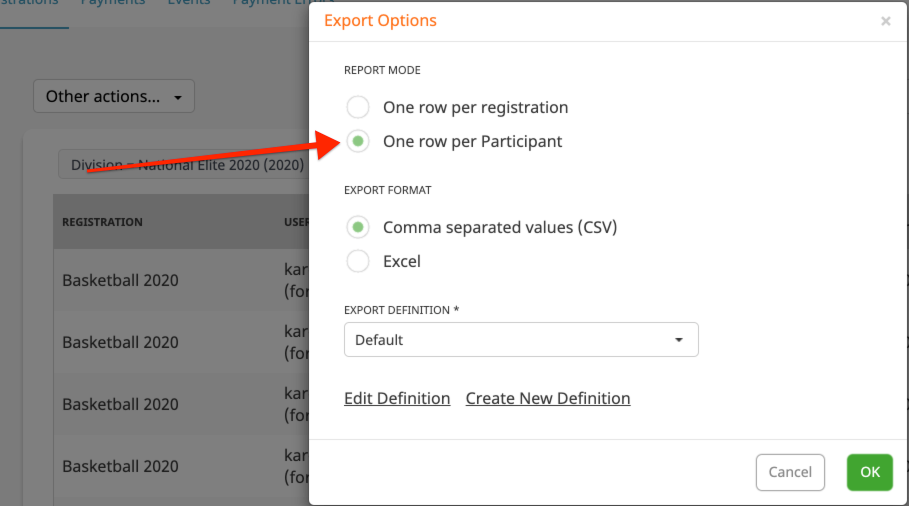
If multiple participants were registered at the same time, this ensures each participant is on their own row. You likely want this when showing program and squad assignments, since it's likely for those participants to be on separate squads.